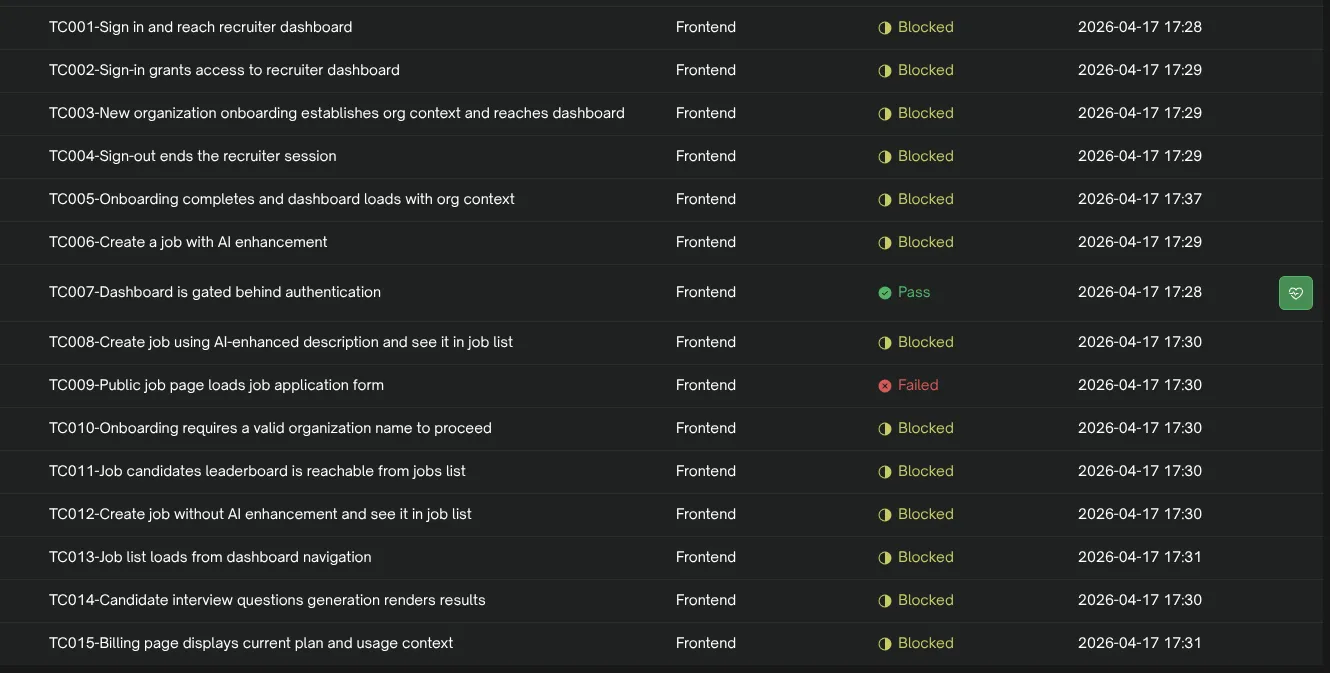
I was working on LucidHire and decided to run a full test sweep using Testsprite — both backend API tests and frontend E2E tests. Nearly everything came back blocked. The backend tests were hitting 401 Unauthorized on every API route. The frontend tests were failing even earlier: Clerk’s sign-in form was rejecting the test credentials entirely, so the runner couldn’t even log in to reach the pages it needed to test.
Two separate problems, two separate fixes. This post covers both.
Table of contents
Open Table of contents
- The Problem: Everything Is Blocked
- Why Not Just Bypass Auth?
- Part 1: Fixing Backend Tests with the Clerk Backend SDK
- Step 1: Install the SDK
- Step 2: Create a Dedicated Test User
- Step 3: Add Environment Variables
- Step 4: Write the Global Setup File
- Step 5: Configure Testsprite to Use the Setup
- Step 6: Use the Token in Your Test Requests
- What This Looks Like End-to-End
- Handling Token Expiry in Long Test Runs
- One Thing to Watch Out For
- Part 2: Fixing Frontend Tests with Clerk Test Credentials
- The Full Picture
The Problem: Everything Is Blocked
The two failure modes look different but share the same root cause — Clerk has no idea these requests are coming from a test runner and not a real user.
Backend tests hit your API routes directly. Your Next.js middleware runs clerkMiddleware(), which checks for a valid session token. Since Testsprite makes raw HTTP calls with no browser session and no Bearer token, Clerk blocks the request before it ever reaches your route handler.
GET /api/jobs → 401 Unauthorized
POST /api/candidates → 401 Unauthorized
PATCH /api/interviews/:id → 401 Unauthorized
Frontend tests have a different problem. Testsprite launches a browser, navigates to your sign-in page, and tries to log in with test credentials. But if those credentials are a made-up email and password, Clerk will either reject them or — if email verification is enabled — get stuck waiting for a verification code that never arrives. The test runner sits at the login screen forever and never reaches the actual UI it needs to test.
Here is what the Testsprite dashboard looked like before any fix — almost every frontend test case showing Blocked:
Why Not Just Bypass Auth?
The quick fix is to add a secret header check in your middleware and skip Clerk when it matches. That works for backend tests, but it has real downsides:
- Your route handlers call
auth()to getuserId,orgId, etc. With a bypass, those calls returnnullor break entirely - You have to mock
auth()separately, which adds more complexity - Your tests are no longer exercising the same code path real users hit
With a real token, none of that is a problem. The token passes through Clerk’s normal verification, auth() returns a real session object, and your route handlers run exactly as they would in production. That is the goal.
Part 1: Fixing Backend Tests with the Clerk Backend SDK
Clerk’s Backend SDK lets you create sessions and generate signed JWTs for any user in your Clerk application — no browser, no OAuth dance, no cookie required.
Step 1: Install the SDK
npm install @clerk/backendStep 2: Create a Dedicated Test User
Go to your Clerk Dashboard, open your application, and create a dedicated test user — something like testsprite@yourdomain.com. Copy the user’s ID from the dashboard (it looks like user_2xyz...).
Never use a real user’s ID for testing. A dedicated test user keeps things isolated and makes it easy to spot test-generated data in your database.
Step 3: Add Environment Variables
Add these to your .env.local and your CI environment:
CLERK_SECRET_KEY=sk_test_xxxxxxxxxxxxxxxxxxxx
CLERK_TEST_USER_ID=user_2xxxxxxxxxxxxxxxxxxx
Step 4: Write the Global Setup File
Create a global setup file that runs once before all your tests, generates a real JWT, and stores it in process.env so every test can access it.
// testsprite.setup.ts
import { createClerkClient } from "@clerk/backend";

const clerk = createClerkClient({
  secretKey: process.env.CLERK_SECRET_KEY!,
});

export async function setup() {
  // Create a real Clerk session for the test user
  const session = await clerk.sessions.createSession({
    userId: process.env.CLERK_TEST_USER_ID!,
  });

  // Get a signed JWT from that session
  const { jwt } = await clerk.sessions.getToken(session.id, "session_token");

  // Make it available to all test files
  process.env.TEST_AUTH_TOKEN = jwt;

  console.log("✅ Clerk test token generated, expires:", new Date(session.expireAt));
}
Step 5: Configure Testsprite to Use the Setup
Point Testsprite at your setup file in its config:
// testsprite.config.ts
import { defineConfig } from "testsprite";

export default defineConfig({
  globalSetup: "./testsprite.setup.ts",
  baseURL: "http://localhost:3000",
});
Step 6: Use the Token in Your Test Requests
Now every test request just grabs the token from process.env:
// tests/api/jobs.test.ts

const res = await fetch("http://localhost:3000/api/jobs", {
  method: "GET",
  headers: {
    Authorization: `Bearer ${process.env.TEST_AUTH_TOKEN}`,
    "Content-Type": "application/json",
  },
});

expect(res.status).toBe(200);
No bypasses, no mocks, no workarounds. Clerk sees a real Bearer token, verifies it, and your route handler gets a fully populated auth() context.
What This Looks Like End-to-End
- Global setup runs → SDK creates a Clerk session for your test user, fetches a signed JWT
- Token stored →
process.env.TEST_AUTH_TOKENis set for the entire test process - Test runs → each request includes
Authorization: Bearer <token> - Clerk middleware → verifies the token, sets the session context, passes the request through
- Route handler →
auth()returns{ userId: "user_2xyz...", ... }just like in production - Test assertion → checks the actual response from your real business logic
Handling Token Expiry in Long Test Runs
Clerk tokens expire after about an hour by default. For most test suites this is fine, but if you have very long-running pipelines you may want to refresh the token per file using a beforeAll block:
// tests/api/jobs.test.ts
import { createClerkClient } from "@clerk/backend";

const clerk = createClerkClient({ secretKey: process.env.CLERK_SECRET_KEY! });

beforeAll(async () => {
  const session = await clerk.sessions.createSession({
    userId: process.env.CLERK_TEST_USER_ID!,
  });
  const { jwt } = await clerk.sessions.getToken(session.id, "session_token");
  process.env.TEST_AUTH_TOKEN = jwt;
});
One Thing to Watch Out For
clerk.sessions.createSession() requires a Clerk Pro plan or above. If you call it on a free plan, you will get a 402 Payment Required error. Also make sure CLERK_SECRET_KEY starts with sk_test_... — the publishable key (pk_test_...) is frontend-only and will not work here.
Part 2: Fixing Frontend Tests with Clerk Test Credentials
Frontend tests are a different challenge. Testsprite spins up a real browser and navigates through your actual UI. That means it has to go through your sign-in page and successfully authenticate before it can test anything behind the auth wall.
The problem is that Clerk’s email verification flow — OTP codes, magic links — is designed to be interactive. A test runner can’t check a real inbox.
Clerk solves this with special test email addresses that bypass real email delivery entirely and accept a fixed, known verification code.
How Clerk Test Credentials Work
Any email address in the format:
[name]+clerk_test@example.com…is recognized by Clerk as a test address. When this address triggers an email verification, Clerk skips sending a real email and instead accepts 424242 as the OTP code every single time.
This works in your development and staging environments where you are using a Clerk test API key (sk_test_... / pk_test_...). It does not work in production.
So your test credentials look like this:
Email:             testsprite+clerk_test@example.com
Password:          YourStrongPassword123!
Verification code: 424242
The name part (testsprite) can be anything valid. The +clerk_test@example.com suffix is what activates the special behavior.
Step 1: Register the Test User in Your App
Before your test suite runs, you need this user to exist in Clerk. You can either create them manually through your app’s sign-up flow once, or do it programmatically in your global setup:
// testsprite.setup.ts
import { createClerkClient } from "@clerk/backend";

const clerk = createClerkClient({
  secretKey: process.env.CLERK_SECRET_KEY!,
});

export async function setup() {
  const testEmail = "testsprite+clerk_test@example.com";
  const testPassword = process.env.CLERK_TEST_PASSWORD!;

  // Check if the test user already exists
  const { data: existing } = await clerk.users.getUserList({
    emailAddress: [testEmail],
  });

  if (existing.length === 0) {
    await clerk.users.createUser({
      emailAddress: [testEmail],
      password: testPassword,
      firstName: "Test",
      lastName: "User",
    });
    console.log("✅ Test user created");
  } else {
    console.log("✅ Test user already exists");
  }
}
Add the password to your .env.local:
CLERK_TEST_PASSWORD=YourStrongPassword123!Step 2: Configure Testsprite with the Test Credentials
Pass the test credentials to Testsprite so it knows what to type into the sign-in form:
// testsprite.config.ts
import { defineConfig } from "testsprite";

export default defineConfig({
  globalSetup: "./testsprite.setup.ts",
  baseURL: "http://localhost:3000",
  auth: {
    email: "testsprite+clerk_test@example.com",
    password: process.env.CLERK_TEST_PASSWORD,
    otpCode: "424242",
  },
});
Step 3: What Happens During Sign-In
With these credentials in place, here is what the frontend test flow looks like:
- Testsprite opens your app in a browser and navigates to the sign-in page
- It fills in
testsprite+clerk_test@example.comand your test password - Clerk prompts for the verification code
- Testsprite enters
424242 - Clerk accepts it and creates a real authenticated session
- The browser is now logged in and Testsprite can navigate to any protected page
From here, all your frontend tests run against a fully authenticated session — the same way a real user would experience your app.
Why 424242 Always Works
Clerk’s test email format is a convention baked into their SDK. When Clerk sees a +clerk_test@example.com address during a test-mode session, it short-circuits the email delivery system and registers 424242 as the valid OTP for that request. No email is sent. No inbox to check. The code is always the same and always valid.
This is analogous to how Stripe uses 4242 4242 4242 4242 as a test card number — a fixed, well-known value that the system recognizes as being in test mode and treats accordingly.
The Full Picture
Once both fixes are in place, your test suite looks like this:
| Test type | Auth mechanism | What Clerk sees |
|---|---|---|
| Backend API tests | Bearer JWT from Backend SDK | Real session token, full auth() context |
| Frontend E2E tests | Sign-in via +clerk_test email + 424242 OTP | Real browser session, full UI context |
Neither approach involves bypassing auth, mocking Clerk, or special-casing your middleware. Both test the real code path.
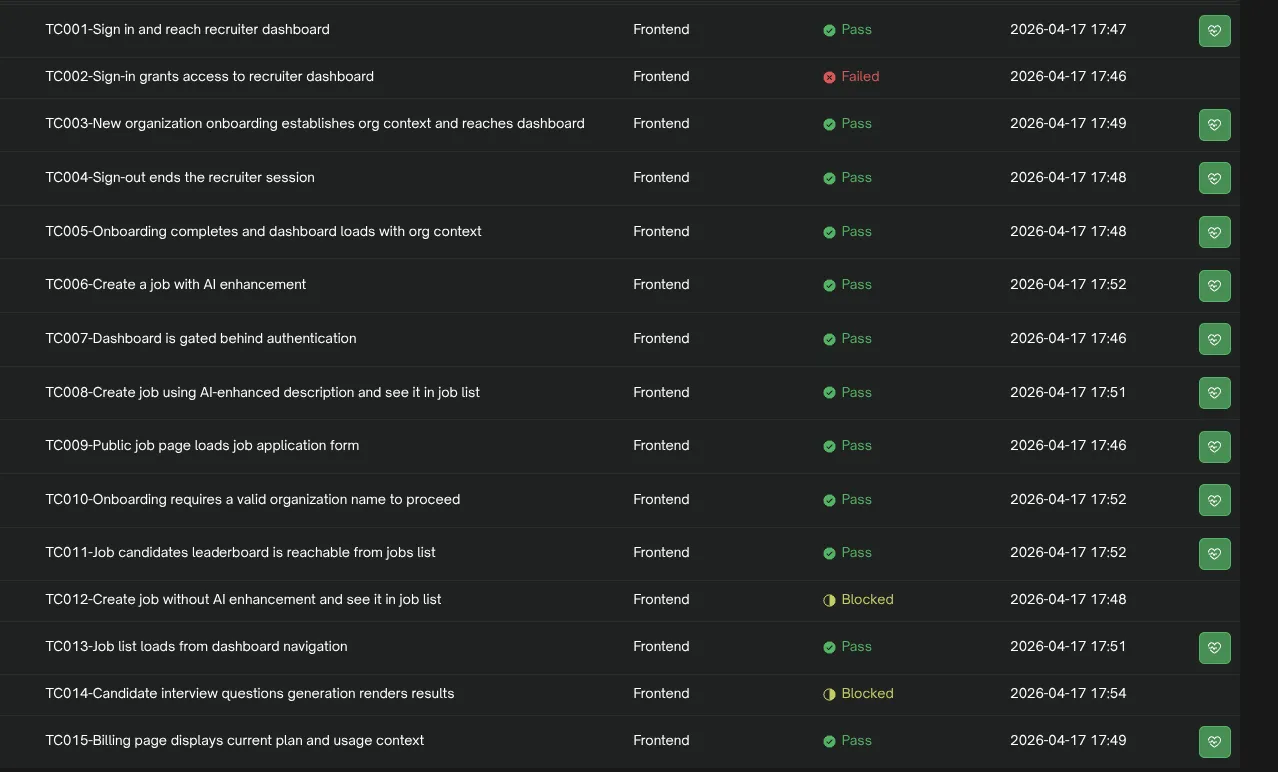
After setting this up across LucidHire’s test suite, every test that was previously blocked by auth started running cleanly. The backend tests hit real route handlers with real session data. The frontend tests navigated through the actual sign-in UI and landed on authenticated pages. Here is the same dashboard after the fix — the wall of Blocked results replaced almost entirely by green Pass:
That is exactly what a good test suite should do.